
How to Transcribe a YouTube Video
Subtitles are useful for more than just following a video while you watch. You might want to save them in a specific format, find a particular phrase, translate part of a video, or use the text for something else later.
There’s no need to type everything out by hand. If a video already has subtitles, you can extract the existing captions. If it doesn’t, an AI tool may be able to transcribe the audio into text.
In this guide, we’ll show you how to get a YouTube transcript, extract and copy the text, and choose the best method for your needs.
What are YouTube subtitles and where do they come from?
Subtitles are a text version of the speech in a video, displayed as you watch. They can be added by the creator or generated automatically by YouTube using speech recognition technology. Automatic captions aren’t available for every video. Their availability can depend on the language, audio quality, video length, and other characteristics of the audio.
Some videos have several subtitle tracks to choose from, while others have only one or none at all.
If subtitles are already available, there’s no need to transcribe the speech again. You can simply extract the text from an existing subtitle track.
How to extract a YouTube transcript and copy it
There are several ways to get text from a video. The best option depends on whether you need just a few lines to read or a full transcript you can save and use separately.
Method 1. Use YouTube’s transcript
If subtitles are available, YouTube may show a full transcript next to the video. You can find a specific phrase and jump to the relevant moment in the video.
This option is useful if you need to:
- Find a specific phrase.
- Read a short section.
- Check what was said in the video.
- Quickly copy a few lines.
YouTube’s built-in transcript is a good place to start. However, copying the full text directly from YouTube can be inconvenient, especially for longer videos.
Here’s how to find a YouTube video’s transcript:
Method 2. Get YouTube transcript from a link
If you need the full text of a video, an online transcription tool can be more convenient than copying subtitles manually. With TubeTranscript, simply paste the video link to get YouTube transcript. The tool can extract available subtitles or use automatic speech recognition when subtitles aren’t available.
This option is useful when you need to:
- Get the full text of a video in one place.
- Avoid copying subtitles manually.
- Find a specific phrase in a long video.
- Download the text in TXT, SRT, or VTT format.
- Use the text for translation, notes, or further editing.
How to do it
1. Copy the video link
Open the YouTube video and copy its URL from the browser’s address bar:

or click Share and copy the link:

2. Paste the link into the tool
Open an online transcription tool, such as TubeTranscript, and paste the video link into the input field.

3. Click “Generate Transcript” to start processing the video.

The tool will process the video and prepare the transcript.
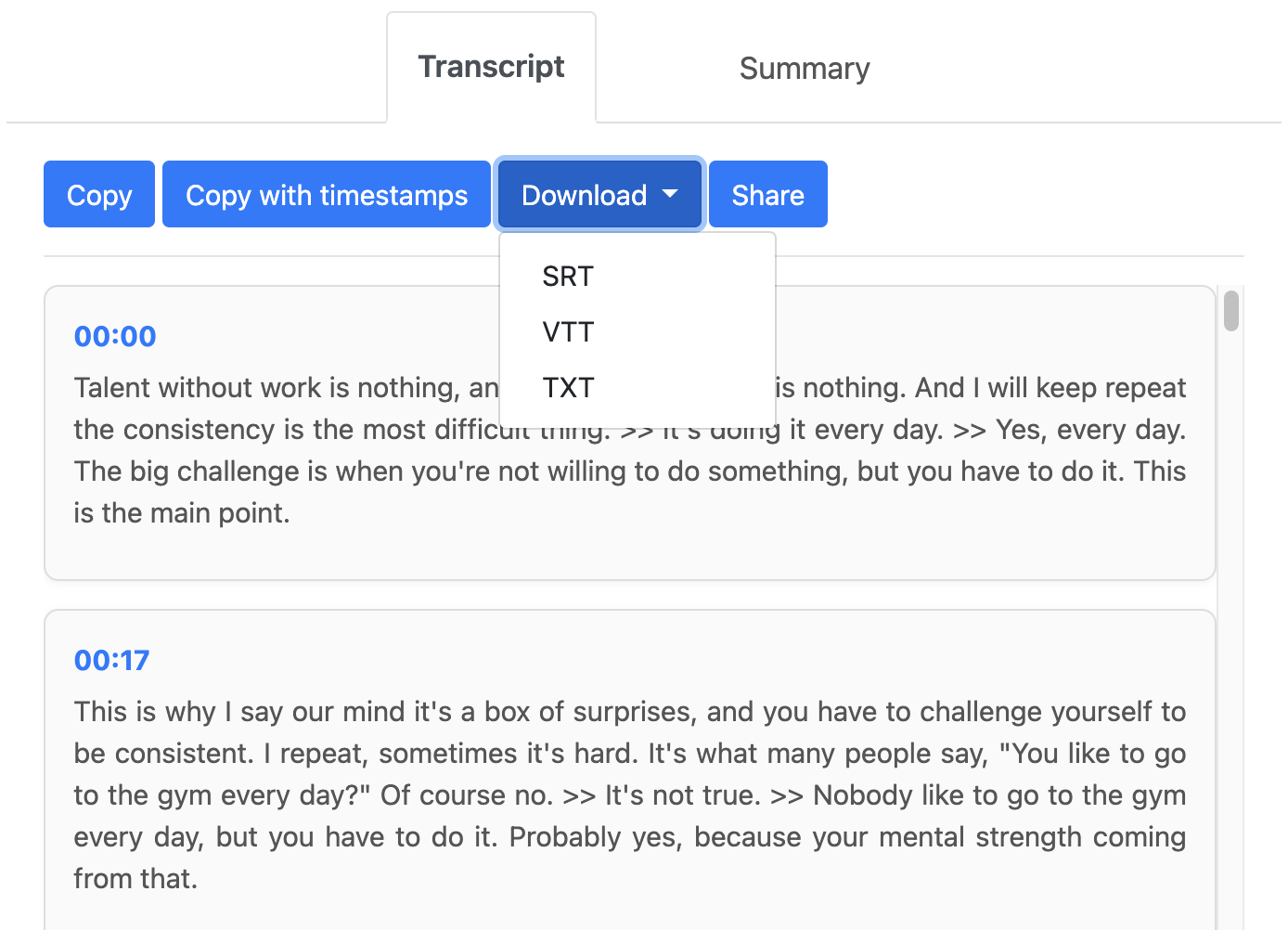
4. Find the section you need
Once the video has been processed, you can read through the full transcript or use the search function to find a specific word or phrase.
5. Copy or save the text
If you only need a short excerpt, copy the relevant section. If you want to keep the full transcript, download it in the format that suits you.
What if a YouTube video has no subtitles?
Not having an existing subtitle track doesn’t mean you can’t get the text.
YouTube automatically generates captions for some videos, but this feature isn’t always available. For example, automatic captions may be missing because of poor audio quality, an unsupported language, a video that’s too long, or several people speaking at the same time.
In this case, you can use AI speech recognition. For example, TubeTranscript can analyze a video’s audio and turn spoken words into text, even when no subtitles are available.
This is especially useful for:
- Interviews
- Lectures
- Podcasts
- Webinars
- Tutorials
- Long videos with lots of dialogue
This way, you can get a transcript of a YouTube video even when subtitles aren’t available.
How to use a YouTube transcript
Once you extract YouTube transcript, you can do more than just read it. You can search the text, edit it, translate it, or use it for other tasks. YouTube transcription is especially useful when you need to work with information from a video without watching it again.
- Find specific information – Instead of rewatching a long video, search the transcript for a keyword, name, or topic.
- Take notes – Pick out the main ideas from a lecture or tutorial and turn them into organized notes.
- Prepare a quote – If you heard a useful phrase in an interview or speech, find it in the text and copy it. For important or verbatim quotes, double-check the wording against the original video.
- Translate the content – A text version of the video is easier to share with a translator or use as the basis for a translation.
- Use AI to work with the text – Use the subtitles to create a summary, identify the main ideas, generate questions, or organize the material.
How to check subtitles before using them
It’s a good idea to check automatically generated subtitles before publishing them or using them for an exact quote. YouTube notes that automatic captions can contain errors.
Pay particular attention to:
- Names and titles – surnames, brand names, companies, and place names.
- Technical terms – specialist vocabulary and industry-specific language.
- Unclear phrases – if a sentence doesn’t make sense, check it against the original video.
- Multiple speakers – speech recognition may be less accurate when several people speak at the same time.
Conclusion
You can transcribe YouTube video without typing everything out by hand. If subtitles are already available, you can extract the existing text. If not, AI can recognize the speech and turn it into text.
An online tool makes it easier to get the text from a video using its link, find the section you need, and save the result in TXT, SRT, or VTT format.
This saves time, especially when you want to work with the video’s content afterwards, whether that means searching for information, taking notes, translating, or editing the text.