
How to Download YouTube Subtitles in TXT, SRT, or VTT
YouTube subtitles are useful for more than just following a video while you watch. Sometimes you may want to save them separately to take notes, find specific information, translate a section, or keep the text for later.
In this guide, we’ll show you how to download subtitles from YouTube, which format to choose, and how TXT, SRT, and VTT differ.
Why save YouTube subtitles?
If you only need subtitles while watching a video, viewing them on YouTube may be enough. But if you want to use the text later, it’s much more convenient to save it as a separate file.
Saved YouTube subtitles can be useful when you need to:
- Take notes from a lecture.
- Find a specific phrase in a long video.
- Translate the content into another language.
- Use quotes from an interview or podcast.
- Edit the text before publishing it.
- Keep the material for reference without watching the video again.
A YouTube video to text tool lets you save the content as a separate document that you can search, edit, and use just like any other text file.
How to download subtitles from YouTube video
One of the easiest ways is to use an online tool, such as TubeTranscript, which extracts available subtitles from a video.
The process is simple:
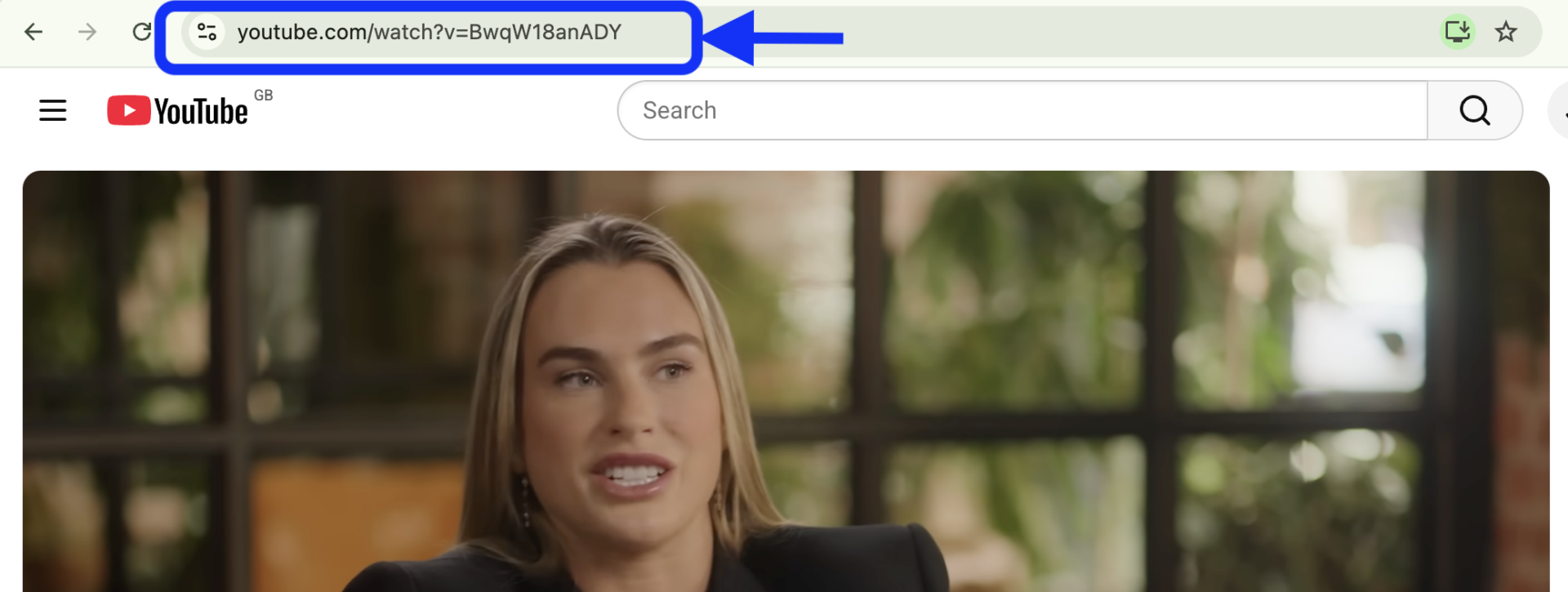
1. Copy the video link
Open the YouTube video you want to download subtitles from and copy its URL from the browser’s address bar.
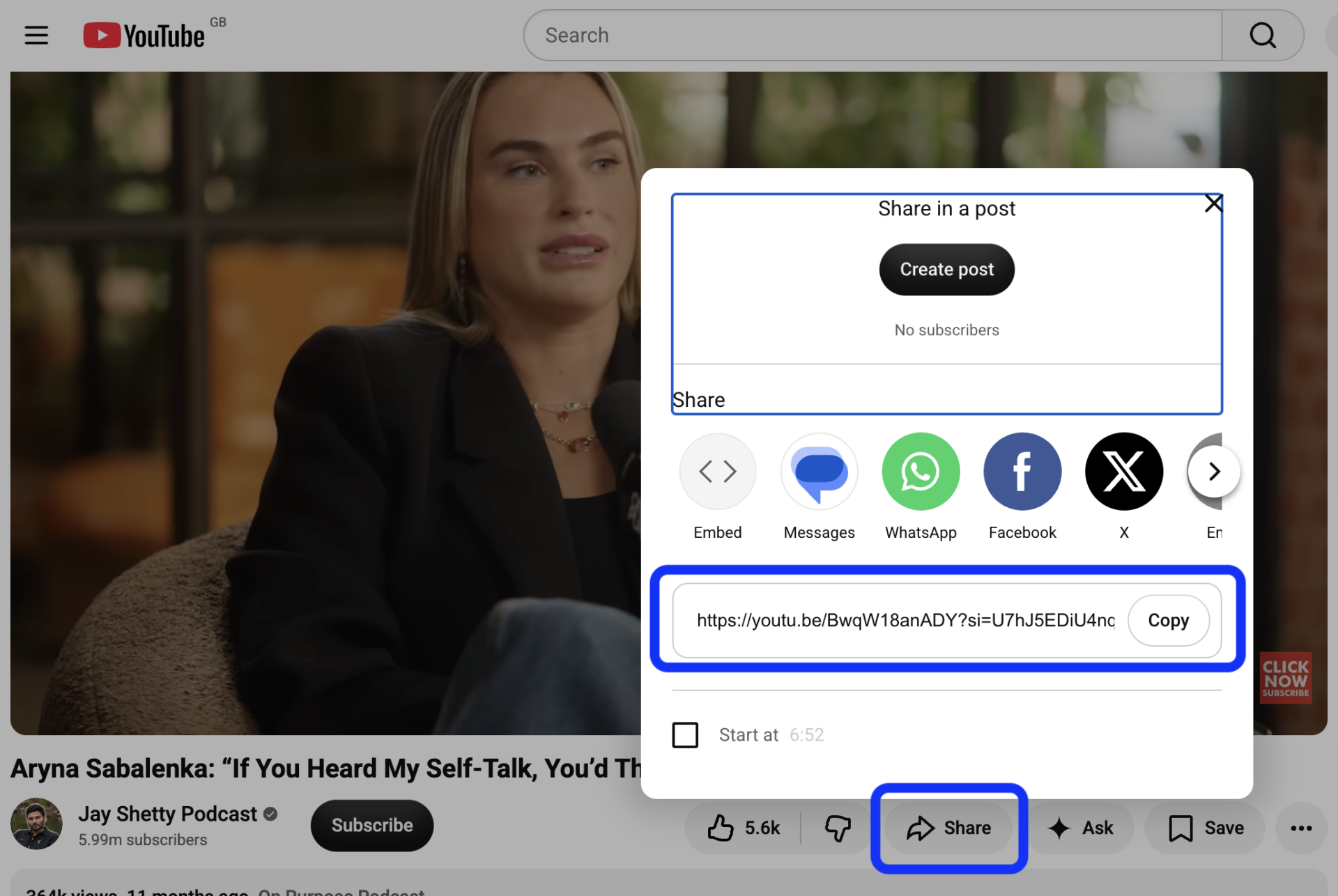
You can also click Share below the video and copy the link.
2. Paste the link into the transcription tool
Open the tool for downloading YouTube subtitles and paste the video URL into the input field.

Then click “Generate transcript”.

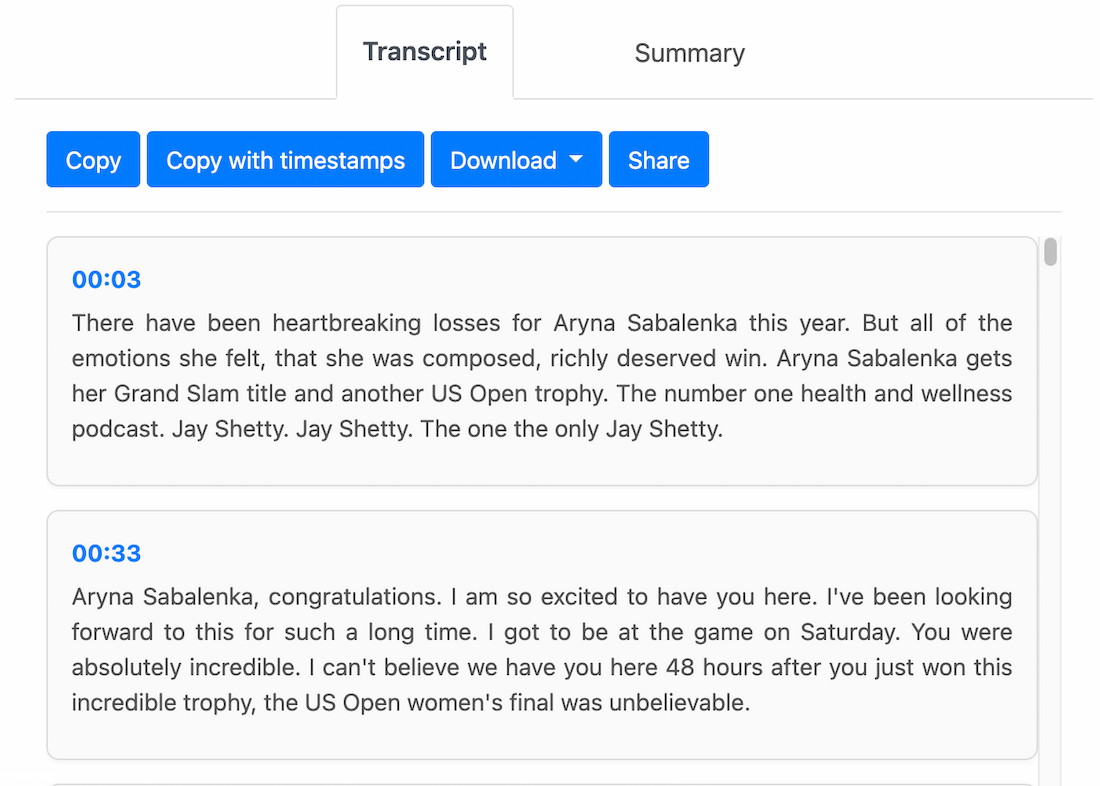
3. Get YouTube transcript
The tool extracts available subtitles or uses AI to transcribe the audio, depending on the video. This lets you get a YouTube transcript even when subtitles aren’t available.
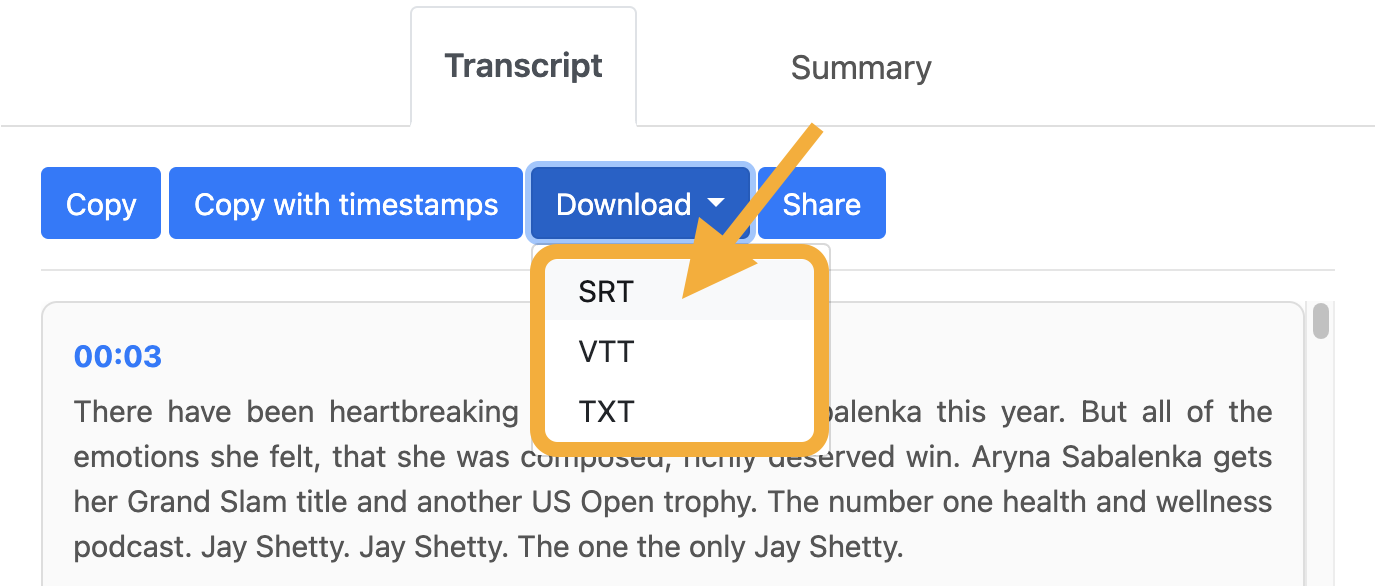
4. Choose a download format
To download YouTube subtitles, choose the format you need: TXT, SRT, or VTT. Then save the file to your device.
5. Save your file
You can keep the subtitle file on your computer, share it with colleagues, open it in a text editor, or use it in another app.
What’s the difference between TXT, SRT, and VTT?
The best format depends on what you want to do with the text.
TXT
TXT is the simplest option. It contains plain text without any special subtitle formatting.
It’s a good choice for:
- Reading
- Taking notes
- Copying text
- Editing
- Translating
- Searching for information
If you just need text from a YouTube video that you can open in almost any text editor, TXT is usually the most convenient option.
SRT
SRT is a popular subtitle format that includes timestamps. Each line of dialogue is linked to a specific moment in the video.
For example:
1. 00:00:02,000 –> 00:00:05,000
Today, we’ll talk about how the tool works.
2. 00:00:05,500 –> 00:00:08,000
First, we’ll go over the main features.
SRT is useful when you want to add subtitles to a video or keep the text synchronized with it.
VTT
VTT is similar to SRT, but it’s commonly used with web-based video players. It supports additional options for displaying and styling subtitles in a browser.
If you want to add subtitles to a website or use them with an online video player, VTT may be the better choice.
Which format should you choose?
If you mainly want to read, copy, or edit the text, choose TXT.
If you need subtitles with timestamps for a video, SRT is a good option.
VTT is often a better fit for web players and online video.
In short:
- TXT — for reading and editing text.
- SRT — for subtitles with timestamps.
- VTT — for web players and online video.
What if a video has no subtitles?
Not every YouTube video has subtitles. They may be unavailable, offered only in certain languages, or subject to other limitations.
In this case, you can use AI to transcribe the audio. TubeTranscript can analyze the audio track, recognize speech, and transcribe YouTube video to text.
This is especially useful for interviews, lectures, podcasts, and other videos where the spoken content matters most.
Can you download YouTube subtitles online for free?
Yes, you can download YouTube subtitles for free without downloading the video or installing any software. Just copy the video link, paste it into TubeTranscript, and wait for the transcript to be ready. You can then copy the text or download it in TXT, SRT, or VTT format.
If the video doesn’t have subtitles, AI can transcribe the audio and turn the spoken words into text.
Conclusion
If you work with YouTube videos regularly, saving subtitles can make it much easier to use the content later. Instead of going back to the video every time, you can open the file and quickly find the phrase or section you need.
Choose the format based on what you plan to do with the text. TXT is useful for reading, searching, and editing, while SRT and VTT keep timestamps and are better suited for working with subtitles.
Even if a video has no ready-made subtitles, you may still be able to get the text using AI-powered speech recognition. In this case, the tool transcribes the audio rather than downloading existing subtitles.