
How to Copy a YouTube Video Transcript
Sometimes you don’t need the whole YouTube video, just a few sentences. Maybe you heard a useful point in an interview, found a quote in a lecture, or want to save part of an explanation from a tutorial.
Typing it all out yourself is a hassle. And if the video is an hour long or more, you first have to find the right moment, listen to it, and write everything down correctly.
It’s much easier to get the transcript first. You can search for the phrase you need, select a few sentences, and copy them wherever you want. Here’s how to copy a YouTube transcript without typing it out yourself.
How to get text from a YouTube video using a link
If you need the full text of a video, you can use an online transcription tool instead of copying the transcript manually. With TubeTranscript, all you need to do is paste the video link, and the tool will generate the text for you. If the video doesn’t have subtitles, AI can transcribe the audio for you.
STEPS:
1. Copy the video link
Open the YouTube video you want to transcribe and copy its URL. You can copy the link from your browser’s address bar.
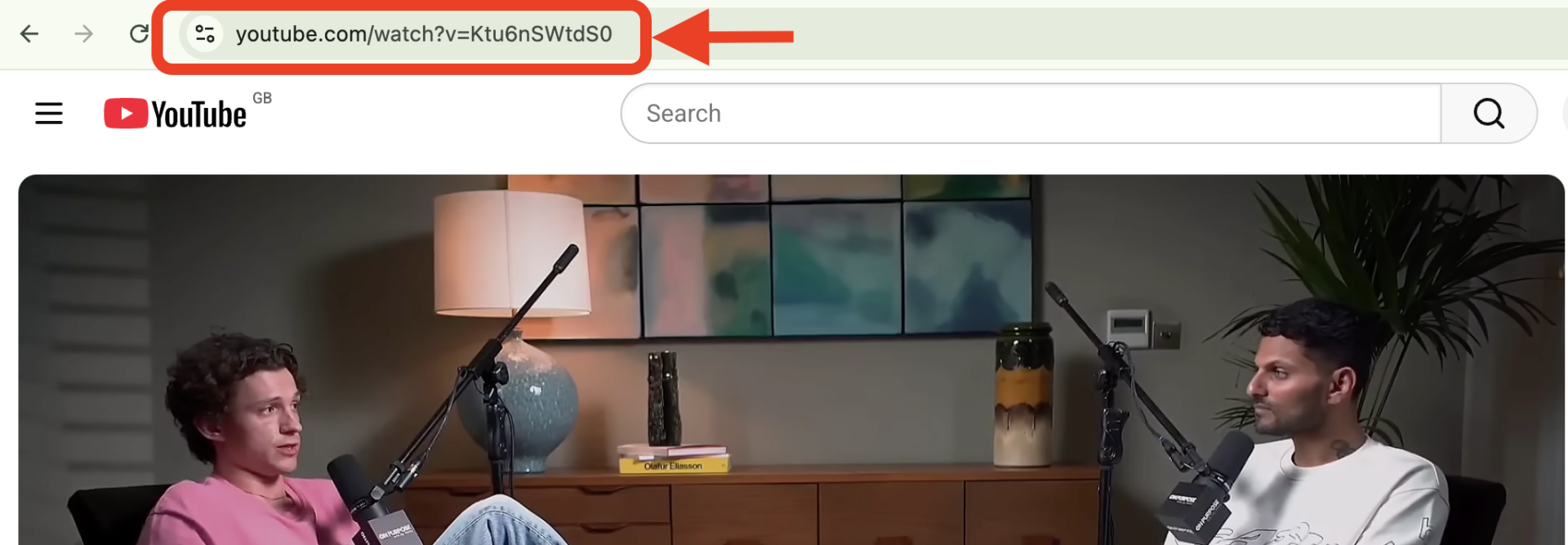
You can also click the Share button below the video and copy the URL.

You don’t need to download the video itself. You only need the video link to get the transcript.
2. Paste the link into the tool
To get text from YouTube video using a link, paste the copied URL into the input field:

and click “Generate Transcript”:

The tool will generate transcript from a YouTube video, giving you text you can use separately from the original video.
3. Find the section you need
Once the YouTube transcript is ready, you don’t have to read it all the way through.
If you’re looking for something specific, use your browser’s find feature:
- Ctrl + F on Windows
- Cmd + F on Mac
Enter a word, name, title, or phrase you remember from the video. This makes it much easier to find the right part of a long lecture, interview, or podcast.
4. Copy the text
Select the section you need with your mouse and press Ctrl + C on Windows or Cmd + C on Mac.
You can then paste the text into:
- Your notes
- Word or Google Docs
- An email
- A message
- ChatGPT or another AI tool
- A work document
If you need the full text, you can copy the entire YouTube transcript or download it in TXT, SRT, or VTT format.
This method is especially useful when you need to:
- Get the full transcript instead of copying individual lines from YouTube’s transcript.
- Find specific information quickly in a long video by searching the text.
- Get a transcript even when a video has no subtitles using AI speech recognition.
- Save the text for later in the format that suits you: TXT for plain text or SRT/VTT if you need timestamps and subtitles.
- Reuse the text for other tasks, such as taking notes, translating content, writing articles, quoting sources, or working with AI tools.
How to copy a transcript from YouTube on your phone
Getting text from a YouTube video on your phone is almost as easy as doing it on a computer:
- Open the video in the YouTube app.
- Tap Share and select Copy link.
- Open the TubeTranscript website in your phone’s browser and paste the link into the input field.
- Once the transcript is ready, tap Copy to copy the text to your clipboard.
- Paste the text into any app you need, such as Notes, a messaging app, or your email.
There’s no need to install an app. The whole process takes place in your browser.
Where to find a YouTube transcript directly on YouTube
Many YouTube videos already have a transcript available. If one is available, you can view the text from a YouTube video directly on the video page.
To open it, click “Show transcript” in the video description. The transcript will appear next to the video. You can search for specific information and click any line to jump to that moment in the video.
This is a convenient option when you only need a short excerpt and don’t need to process the entire video.
However, it doesn’t work for every video. The available transcripts and languages vary depending on the video. And if you want to save the text separately or work with it further, getting it as plain text may be more convenient.
Before copying anything, it’s worth deciding what you actually need: a few lines from the video or the full transcript.
Watch the video tutorial:
What to do if you can’t find a phrase
Try searching for one or two keywords instead of the exact sentence.
For example, if you remember hearing “artificial intelligence will change the job market” but aren’t sure of the exact wording, try searching for:
- “artificial intelligence”
- “job market”
- “AI”
- “work”
Automatic transcripts may not match the spoken words exactly, so searching for individual words often works better.
Conclusion
If you want to copy a transcript from YouTube, the best approach depends on what you need. For a short quote or a specific detail, YouTube’s built-in transcript may be enough. You can search for a word or phrase, find the relevant section, and copy it.
If you need the full text or want to work with it outside YouTube, an online transcription tool like TubeTranscript can be more convenient. Once you have the transcript, you can search it, save it, or use it for notes, research, and writing without going back through the entire video.