
YouTube keeps adding new AI-powered tools, and one of the latest updates is a feature called YouTube Ask. It’s an AI chat integrated right into the YouTube video player. With it, viewers can ask questions about the video content and get instant answers from an intelligent assistant.
In other words, YouTube is offering a new way to interact with videos not just passively watch, but actively engage, ask, and learn more.
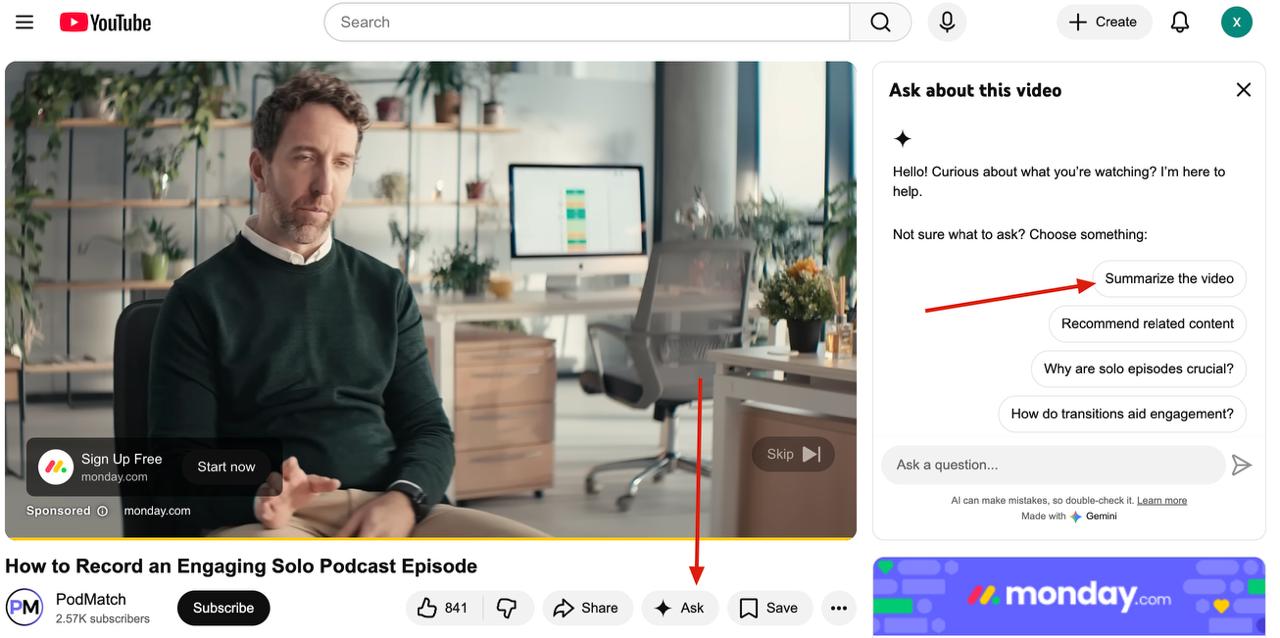
In this article, we’ll explain in simple terms what YouTube Ask does, how it works, who has access to it, and give examples of how to use it. We’ll also show what to do if you don’t have this feature yet.
What Is YouTube Ask and Why Is It Useful?
YouTube Ask is an experimental feature powered by generative AI. It acts like a chatbot that lets you ask questions in real time about the video you’re watching. It’s triggered by a button called “Ask” that appears just below the video. You can either type your own question or pick from suggested prompts, and the AI will analyze the video and respond almost instantly.
The system uses a large language model from Google the same technology behind Google Gemini. This means responses are based on the video transcript and sometimes also pull information from the web to give more complete answers.
Why would you use it?
Imagine you’re watching a 45-minute lecture or a complex tutorial. Instead of rewinding or scrubbing through the video to find one piece of information, you can just ask the AI. It’s like having a search bar for the video.
YouTube Ask makes the experience more interactive and helps you better understand the content without wasting time. It’s especially useful for:
- Summarizing long videos
- Explaining unclear parts
- Recommending related content
How Does the Ask Feature Work?
Interface
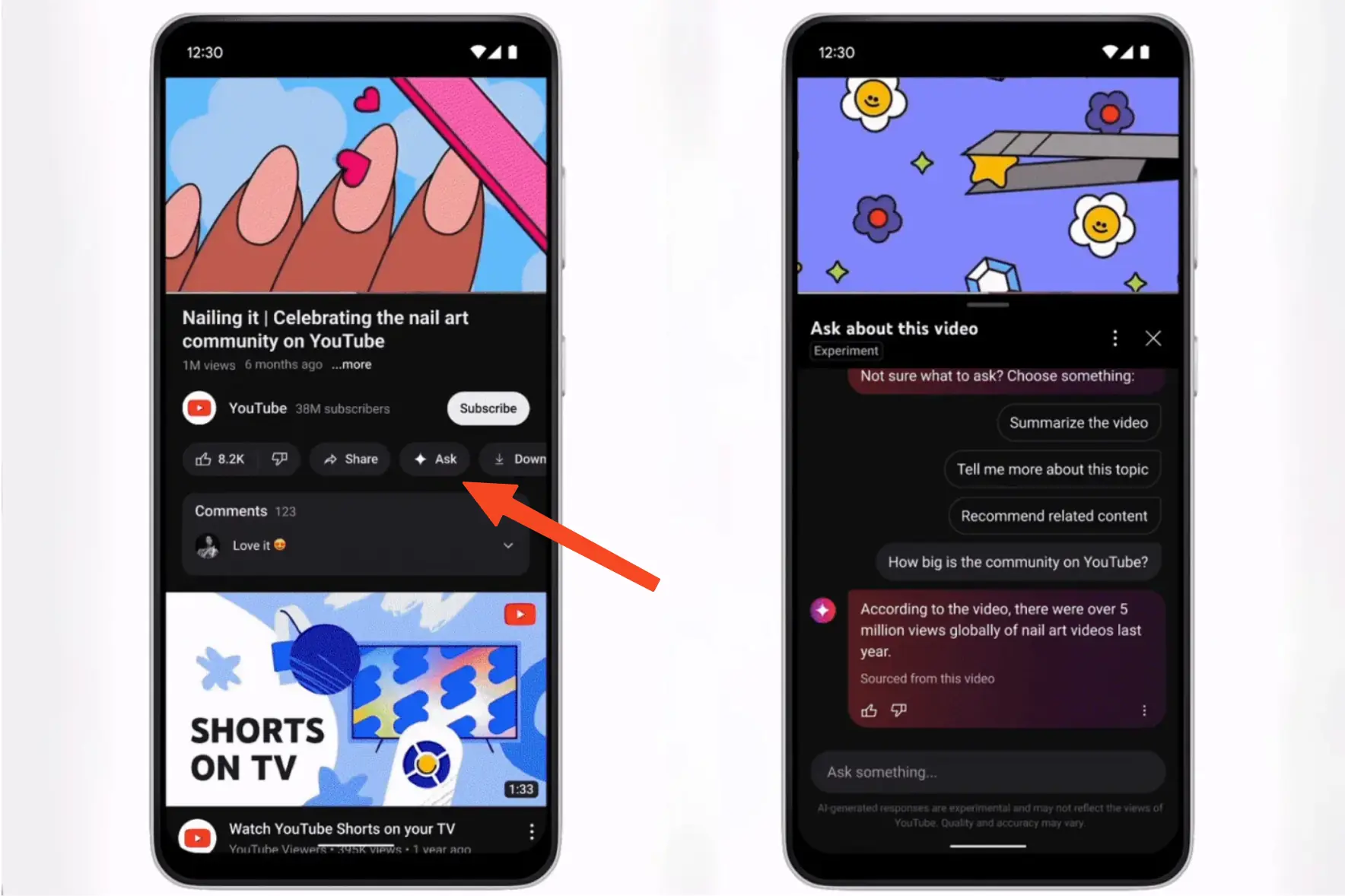
The Ask button appears just below the video player, near the Like and Share buttons. If the feature is enabled for your account, you’ll see it clearly.
Clicking “Ask” opens a side or bottom panel with a chatbot. It welcomes you and usually offers a few suggested questions, such as:
- “Summarize this video”
- “Explain more about this topic”
- “Recommend related videos”
You can click on one of those or type your own question.
Getting a Response
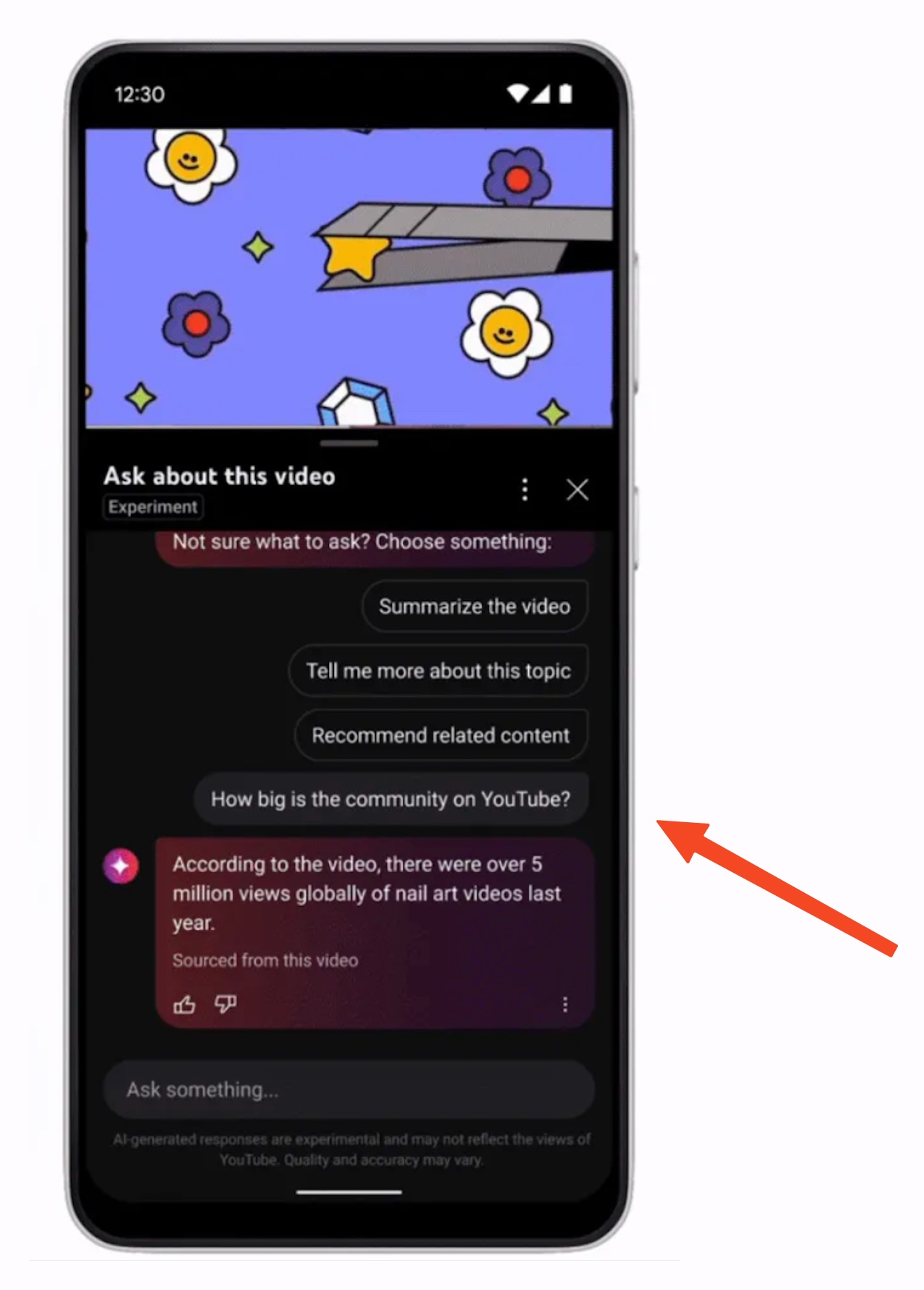
Once you send a question, the chatbot reads the video transcript to find the answer. If needed, it pulls extra context from the internet. The AI quickly generates a reply, usually within a few seconds.
For example:
- Ask: “What year did this event happen?”
- The bot scans the transcript and gives a direct answer.
If your question is broader, like “What’s the difference between processor A and B?”, the bot may give an explanatory summary based on web sources.
Each answer includes a disclaimer like: “This response was generated by AI and may not reflect YouTube’s views.” You can rate answers to help improve the model.
Note: Ask only works on videos with transcripts. You’re more likely to see the feature on newer videos than older ones.
Examples of What You Can Ask
This tool is flexible — you decide what to ask. Some useful real-world examples:
1. Get a video summary
Instead of watching a full 30-60 minute video, ask: “Summarize this video.” The bot gives you the key points in a few sentences.
2. Clarify details
Ask: “What ingredients are used in this recipe?” or “What tool is the presenter using?” The AI will extract and list them for you.
3. Find related content
Say: “Recommend similar videos.” You’ll get a list of relevant YouTube videos on the same topic.
4. Test your knowledge
For educational content, you can ask: “Give me a quiz on this video.” Or say: “Explain this term in simple words” — great for learning difficult topics interactively.
Where and Who Can Use YouTube Ask?
Currently, YouTube Ask is not available to everyone. Here’s what we know:
- Initial launch: Mid-2024, for YouTube Premium users in the US only
- Languages supported: English, Spanish, and Hindi
- Platforms: Android, iOS, and desktop web
- Age limit: Available only to users 18+
The feature started as a limited test through youtube.com/new. Over time, it expanded to more regions and some free users in the US. However, it’s still not available in the EU, Russia, or many other countries, mostly due to legal and policy considerations.
If you don’t see the Ask button, it may be because:
- Your account is under 18
- You’re in a country where it’s not launched yet
- The video has no transcript
- The feature isn’t rolled out to your account yet
What If You Don’t Have Access Yet?
Don’t worry many users around the world still don’t have access to YouTube Ask.
But there’s a solution: You can still get video summaries and transcripts using our free online tool https://tubetranscript.com/. Just paste the YouTube video link, and we’ll generate:
- A full transcript (even if YouTube’s captions are off)
- A smart summary with key takeaways
It’s a fast and easy way to get the most out of any video — even if you don’t have access to the official Ask feature.
Final Thoughts
YouTube Ask is a promising step in making video content more interactive and accessible. While it’s still in limited rollout, it shows how AI can help viewers save time and learn more efficiently.
Until it’s fully available, use our free summarization tool to get the insights you need from any video!